KeyForge for Designers

Stay in your
creative flow.

Keep your favorite design shortcuts, editing tools, and navigation controls within reach. Customize physical keys and knobs around the way you create.

Repeating design tasks?
Save dedicated configs for each task.
Apply properties with dedicated shortcuts.
Navigate your canvas with physical knobs.
Simplify exports with custom actions.

Apply Auto Layout.
One press.

With KeyForge Master, configure a button to trigger Figma’s Shift + A shortcut. Select your design elements and press the button to apply Auto Layout instantly, without interrupting your workflow.

Click to try
Macropad button
Selected

Build your own setup.

A DEDICATED CONFIGURATOR
DESIGNED AROUND YOUR WORKFLOW
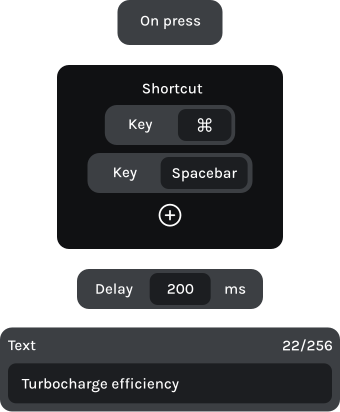
Make MK-01 work the way you design. With KeyForge Master, assign editing shortcuts, canvas navigation, and multi-step actions to your keys and knobs. Create up to five configurations for different design apps or workflows.
action sequence

From first frame to final export.

From the full canvas to the smallest detail.

During a design review, press just a button to zoom into your selected frame. Turn the knob to inspect the details, then press another button to bring the entire canvas back into view.

Button 1

Create component

Ctrl + Alt + K

Button 2

Frame selection

Ctrl + Alt + G

Knob 1 | Left

Zoom out

Ctrl + –

Knob 1 | Right

Zoom in

Ctrl + +

Move between tools without losing momentum.

Switch between selecting objects and refining vector paths without searching through the toolbar. Use your knob to adjust the canvas zoom while working on the details.

Button 1

Duplicate selection

Ctrl + J

Button 2

Convert to curves

Ctrl + Enter

Knob 1 | Left

Zoom out

Ctrl + –

Knob 1 | Right

Zoom in

Ctrl + +

Keep your artwork organized.

Group related elements, ungroup them when you need to make adjustments, and navigate your canvas with dedicated physical controls.

Button 1

Export for screens

Ctrl + Alt + E

Button 2

Create outlines

Ctrl + Shift + O

Knob 1 | Left

Zoom out

Ctrl + –

Knob 1 | Right

Zoom in

Ctrl + +

Your brush controls, within reach.

Switch between painting and erasing with dedicated buttons. Turn the knob to adjust your brush size while retouching, masking, or painting.

Button 1

Stamp layers

Ctrl + Alt + Shift + E

Button 2

Create clipping mask

Ctrl + Alt + G

Knob 1 | Left

Zoom out

Ctrl + –

Knob 1 | Right

Zoom in

Ctrl + +

Frequently asked questions

Is MK-01 compatible with my design applications?

Yes. MK-01 works with design any application that support keyboard shortcuts, including Figma, Affinity, Adobe Illustrator, and Photoshop. Assign your favorite editing commands to physical keys and knobs using KeyForge Master.

Yes. Each knob supports clockwise rotation, counterclockwise rotation, and a button press. Assign shortcuts for zooming, adjusting brush sizes, navigating your canvas, or other functions supported by your design software.
Yes. MK-01 stores up to five configurations directly on the device. Create dedicated layouts for Figma, Affinity, Illustrator, Photoshop, or different workflows and switch between them whenever needed.
KeyForge Master is available for Windows, macOS, and Linux. Use the desktop application to customize your MK-01 and save configurations directly to the device.
No. KeyForge Master doesn’t require an account. Connect your MK-01, customize your keys and knobs, and save your configurations directly to the device.

Make your first
workflow upgrade
for less

Join the Forge and get 10% off your first device, plus product updates and workflow ideas.