
We are using cookies in order to give you the most relevant experience. To use the site, it is necessary to accept the cookie policy.
Connect your KeyForge device to your computer. Open it from the Connected devices area in KeyForge Master.
Select a key or dial, choose an action and select Apply changes to save the configuration to your device.
Once configured: keyboard shortcuts and supported on-device actions remain available without keeping the configurator open. Computer-assisted features, such as App Sync or the on-screen overlay, require the desktop software.
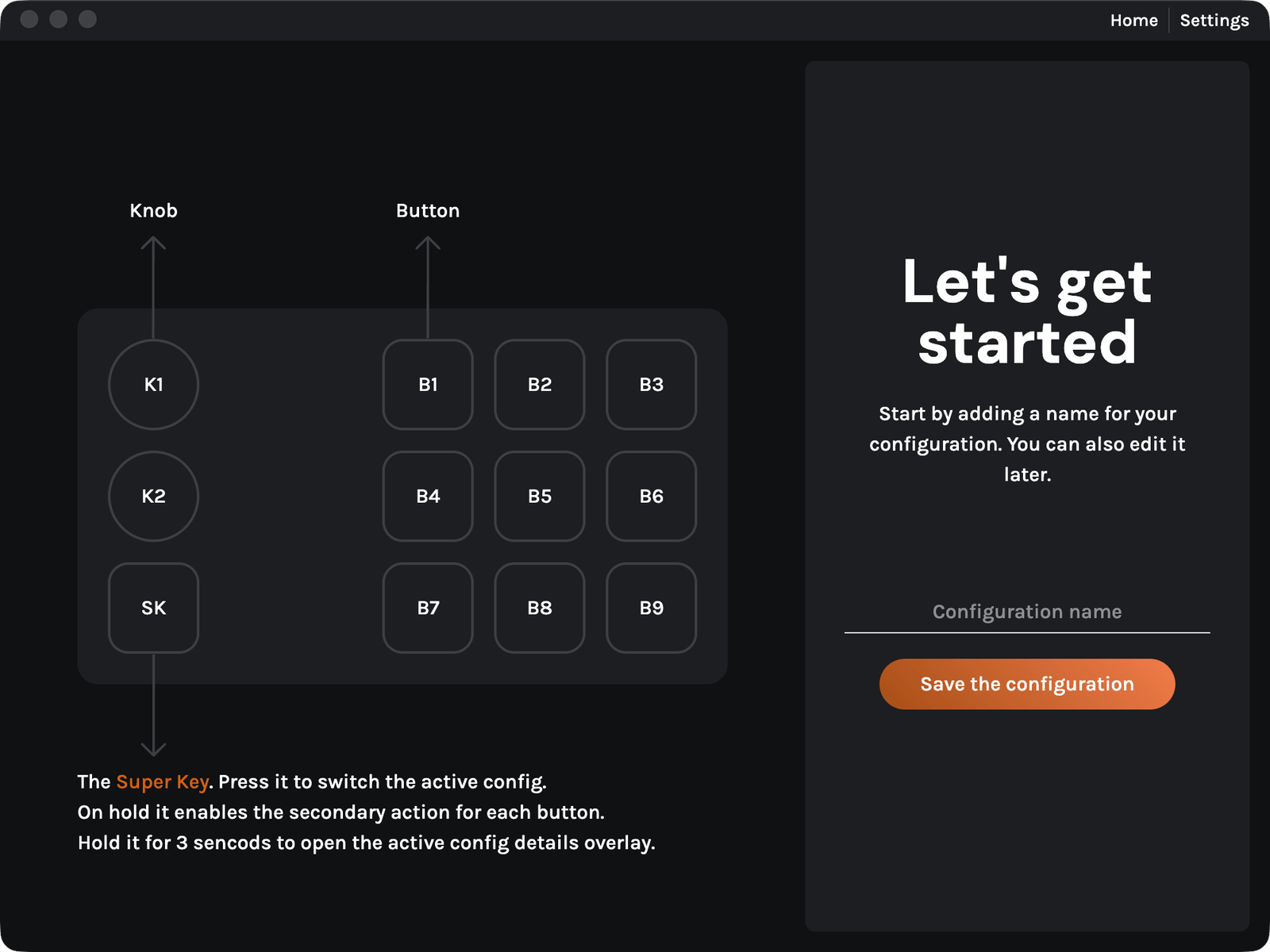
Each encoder provides three inputs: turn left, turn right, and press. Configure these inputs individually.
Trigger the other control’s secondary action while holding SuperKey.
Active config overlay: In KeyForge Master, open Settings → Device → Active config overlay and select On or Off. Turning it off does not affect SuperKey, the secondary actions, or configuration switching.
MK-01 supports up to five configurations. If you have uncommitted edits, KeyForge Master may ask you to apply or discard them before switching. Deleting a configuration is available for inactive configurations.
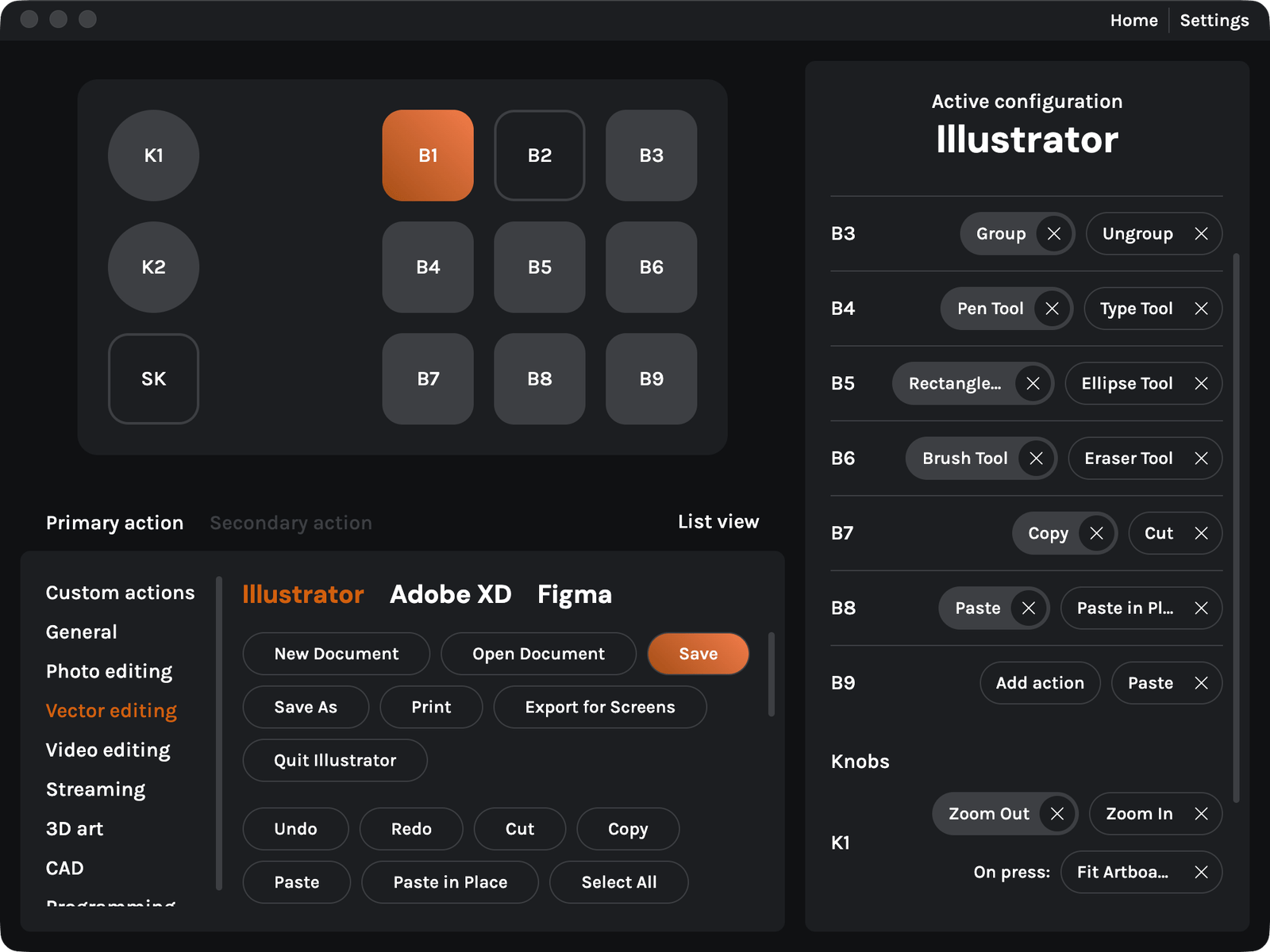
Where supported, choose Primary action or Secondary action.
Choose a built-in action from the software library or an action you created in Custom actions.
Click on Apply changes to save the updated assignments to the connected device.
Select the action you want, then use Apply changes to save the assignment to your device.
Software shortcuts: A predefined shortcut sends the relevant key combination. It only performs the intended command when the active application supports that shortcut.
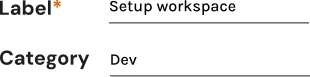
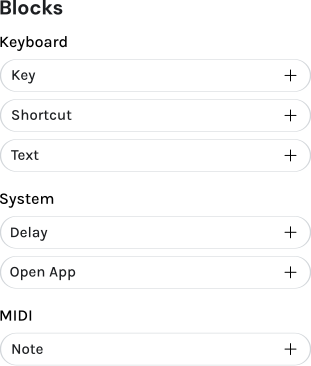


Open Custom actions, then choose Create action or edit an existing action. Enter a name and optionally select a category.
Choose blocks from the Keyboard, System or MIDI groups. Configure each block as it is added.
Click on Save Action, then assign the custom action to a control in your device configuration and apply changes.
Add Note, Control Change, Program Change, Pitch Bend or Channel Pressure messages. See the MIDI reference for each type.
Execution depends on the action type. Basic device actions can work from stored configurations. Open app and other computer-assisted behavior require supported desktop integration; availability may differ by device and software version.
Send a pitch-bend value on the chosen MIDI channel.
Add the required MIDI block in the Custom Actions builder and set its channel and message values.
Relative CC formats: The builder offers 2’s Complement, Binary Offset, Signed Bit and Signed Bit 2. The receiving software must use a matching format. MIDI features depend on supported device firmware and application versions.
Open Settings → Device, click on a configuration’s settings icon, and use the App sync field to associate an installed application.
Return to the Device settings screen and set App sync to On.
App Sync depends on the configurator detecting the active application; it cannot work while the required desktop integration is closed. Availability depends on your installed KeyForge Master and device firmware versions.
In application settings, choose System, Dark or Light.
Open the application settings area. Under Custom actions, select Save KF file and choose a location for the .kf file.
Select KF file, choose a previously exported file, then review your available custom actions.
How import works: Imported actions are merged by category and action ID. If an imported action has the same ID in a matching category, the imported version replaces it. New actions are added. The backup is for custom actions, not a full backup of every device configuration.
Use the app update method available for your operating system. You can also obtain the current installer from the Configurator page.
If KeyForge Master displays Reconnect required, follow the message and reconnect the device before continuing.